
How to set up multi-timeframe charts in MetaTrader 5
Reading time: 10 minutes
A single price chart can tell you a lot, but it rarely shows the full picture. A market may look bullish on a 15-minute chart while moving lower on the daily chart. Looking at more than one timeframe can help you put short-term price moves into context.
MetaTrader 5 (MT5) can help with this. You can open several charts for the same instrument, assign a different timeframe to each and arrange them in one workspace. Once you understand how to set up multi-timeframe charts in MetaTrader 5, you can build a layout that suits your trading style without constantly switching between charts.
Key Points
- MT5 lets you open multiple charts for the same instrument and display each on a different timeframe.
- Multi-timeframe analysis in MT5 can help you compare the broader trend with shorter-term price movements.
- You can arrange and save your chart layout using MT5’s window and profile features.
What is multi-timeframe analysis in MT5?
Multi-timeframe analysis involves studying the same financial instrument across different time intervals. Each timeframe displays price movements at a different level of detail. For example, a daily chart shows the price action for each trading day, an hourly chart breaks that movement into intervals of one hour, while a 15-minute chart offers a closer look at short-term fluctuations.
Traders often use three timeframes for different purposes. Higher timeframes can help identify the broader trend and major support or resistance areas. Middle timeframes are frequently used to assess the current market structure and potential trading setups, while lower timeframes allow closer examination of price action when considering an entry or exit. These roles are flexible. A swing trader may use weekly, daily and four-hour charts, while an intraday trader may prefer four-hour, one-hour and 15-minute charts.
MT5 supports 21 chart timeframes, ranging from one minute (M1) to one month (MN1). This gives traders considerable flexibility when building an analysis routine.
How to set up multi-timeframe charts in MetaTrader 5
The following steps apply to the MT5 desktop platform. Menu positions may vary slightly with the platform version or custom workspace settings.
Step 1: Open MT5 and choose an instrument
Launch MT5 and log in to your trading account. Find the Market Watch window, which displays available instruments and their prices. If Market Watch is hidden, open it from the View menu or press Ctrl+M.
Find the instrument you want to analyse, such as EUR/USD, gold or a stock index. Right-click the symbol and select Chart Window. MT5 will open a chart for that instrument. You can also open a chart using the platform’s File > New Chart menu.
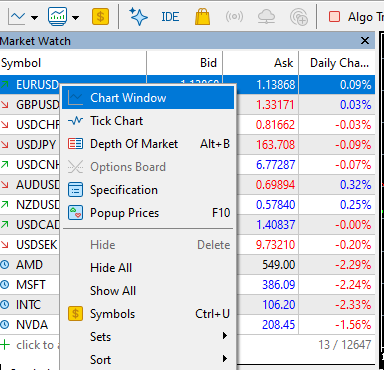
Opening a chart on MetaTrader 5
Step 2: Select the first timeframe
Once the chart opens, choose the timeframe you want to study. MT5 provides timeframe buttons on the toolbar, or you can select a timeframe from the Charts > Timeframes menu.
Common options include M5 (five-minute chart), M15 (15-minute chart), M30 (30-minute chart), H1 (one-hour chart), H4 (four-hour chart), D1 (daily chart) and W1 (weekly chart).
For a basic setup, start with a daily chart. It can help you assess the broader direction before looking at shorter intervals. Remember that the timeframe determines the period represented by each bar or candlestick. On an H1 chart, each bar represents one hour of price data; on a D1 chart, each bar represents one day.
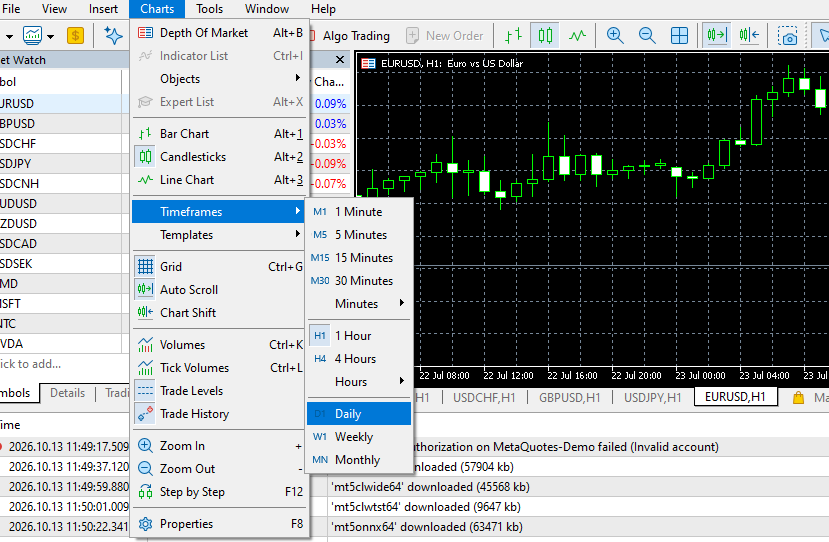
Choose chart timeframe on MetaTrader 5
Step 3: Open additional charts for the same instrument
Now open another chart for the same symbol. Return to Market Watch, right-click the instrument and select Chart Window again. Repeat this process until you have the number of charts you need. For a simple setup, three charts are usually enough.
Using the same instrument keeps the comparison focused. If you are analysing EUR/USD, for instance, you can open three EUR/USD charts rather than switching between different currency pairs.
Select each chart individually and change its timeframe using the toolbar or the Charts menu.
For example, you could set up the following combination:
| Chart | Timeframe | Main purpose |
|---|---|---|
| Chart 1 | D1 | Review the broader trend and key price levels |
| Chart 2 | H4 | Examine the developing market structure |
| Chart 3 | H1 | Study shorter-term price action |
This is only an example, not a universal trading formula. The right combination depends on your trading horizon, the instrument and your strategy. Check the symbol and timeframe displayed on each chart before moving on. It is easy to change the wrong window when several charts are open.
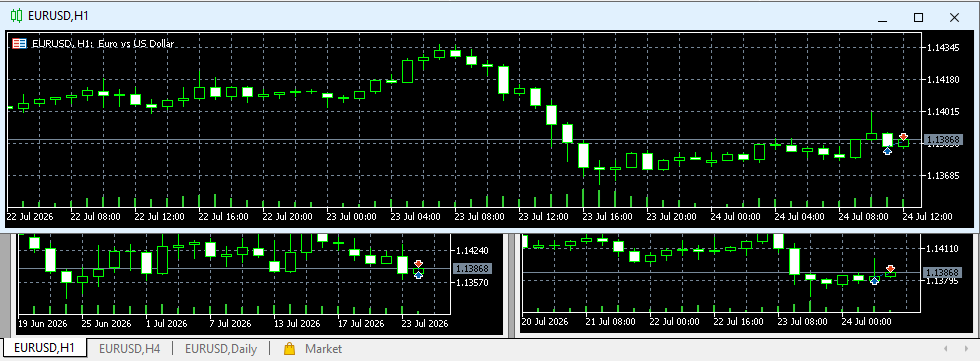
Open different charts for one instrument on MetaTrader 5
Step 4: Arrange the charts on your screen
You now have multiple charts, but they may overlap or appear in separate windows. To compare them conveniently, arrange the windows using MT5’s Window menu.
Select one of the available chart arrangement options. Depending on the workspace and platform version, you can tile the open charts or choose another arrangement that makes them easier to view. Tiling is often useful because it allows you to see several timeframes at once. If the charts look too small, close any windows you do not need or adjust the layout.
You can also maximise one chart temporarily when you need a closer look. Return to the tiled layout when you want to compare the timeframes again.
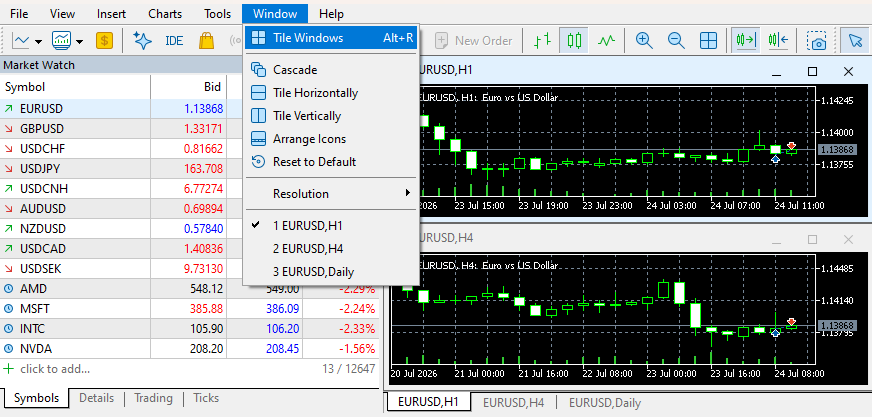
Choose chart layout on MetaTrader 5
How to use multiple timeframes charts in MT5
Once your charts are ready, the next step is to give each one a clear purpose. Simply opening several windows doesn’t improve analysis on its own.
Start with the higher timeframe
Many traders begin with the daily or weekly chart, depending on their trading horizon. They look at the broader price direction, recent highs and lows, and areas where price has previously stalled or reversed, checking whether the market appears to be trending upwards, downwards or moving sideways. Traders don’t usually do this to predict the next move but to understand the current market context.
Move to the middle timeframe
Traders often look at four-hour or one-hour charts to check price behaviour. This can help explain price moves seen on the higher timeframe. For example, a daily chart may show an overall upward trend, while the four-hour chart shows a temporary pullback. That pullback does not automatically mean the broader trend has reversed. It may be a short-term move within the larger trend. The middle timeframe may also show weakening momentum or a change in market structure. This is commonly treated as information to assess, not a signal to trade by itself.
Use the lower timeframe for detail
Finally, traders typically check the lower timeframe if their strategy requires more precise timing. They might examine recent highs and lows, candlestick patterns or a possible break of a price level. This approach is one way to use multiple timeframes in MT5 without allowing every small price movement to influence your overall view.
Traders also tend to keep the roles consistent. If you regularly change which timeframe defines the trend and which one guides entry decisions, your analysis might become confusing.
Watch for conflicting signals
Different timeframes may not always agree. A short-term chart may turn bullish while the daily chart remains bearish. This is normal because each chart displays a different portion of market activity. Experienced traders generally don’t force the charts to tell the same story. Instead, they usually decide in advance how their strategy handles conflicting signals. They might wait for clearer confirmation, reduce the number of trades they consider or simply stay out of the market.
Multi-timeframe analysis in MT5 can provide context, but it cannot eliminate uncertainty or guarantee accurate forecasts.
Save your MT5 multiple timeframe charts
MT5 lets you save your chart arrangements.
Save a profile
A profile stores the open charts and their arrangement, along with the templates applied to them. This makes profiles useful for saving an entire multi-timeframe workspace.
Once your charts are arranged, open File > Profiles > Save As and give the profile a recognisable name, such as ‘EURUSD Multi-Timeframe’. The exact menu presentation may vary slightly by version.
You can create separate profiles for different instruments or trading approaches. For example, one profile might contain currency charts for intraday analysis, while another contains daily and weekly charts for longer-term research.
Use templates for individual chart settings
Templates are used for a different purpose. They save settings for individual charts, including their appearance, indicators and analytical objects. Those settings can be applied to another chart. For example, you might create a template with your preferred candlestick colours and moving averages and then apply it to each chart for consistency.
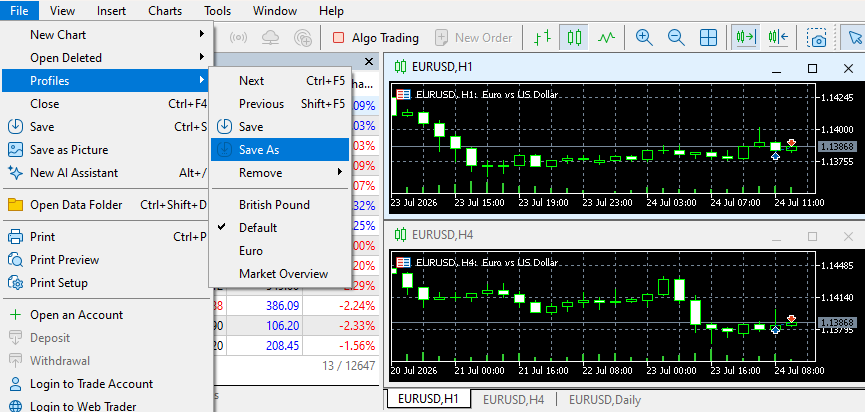
Save charts on MetaTrader 5
Build a workspace that fits your trading approach
Setting up multi-timeframe charts in MT5 takes only a few steps. The real value comes from using each chart for a specific analytical purpose. MT5 provides advanced charting tools and access to multiple markets through supported brokers. FP Markets offers MT5 for analysing and trading CFDs across asset classes, including forex, shares, indices, metals and commodities. Platform availability, instruments and trading conditions depend on the account and applicable entity. Open your account to learn how to set up multi-timeframe charts in MetaTrader 5.
Frequently asked questions (FAQs)
MetaTrader 5 supports up to 100 open charts. The practical number you can view comfortably depends on your screen size and how you arrange the windows.
Yes. Open separate charts for the same instrument and assign a different timeframe to each. You can then arrange the charts side by side for comparison.
No. You can perform basic multi-timeframe analysis using MT5’s built-in chart windows and timeframe settings. Custom indicators are optional and may offer additional ways to display information from other timeframes.